Showing posts with label Blogger. Show all posts


Auto read more functions automatically shorten your post and create a thumbnail of an image which is present in the post.It also helps to load page faster.It also shows and image thumbnails which helps to attract the readers.I have also added the auto read more to my blog.You just have to add two codes to blog no need jquery or css.Now lets see how to add auto read more with thumbnails for blogger.

How To Add Auto Read More With Thumbnails For Blogger ?

  • Go to Blogger Dashboard > Design > Edit HTML.
  • Now find </head> tag
  • Place below code just before/above </head> tag.
<script type='text/javascript'>var thumbnail_mode = "no-float" ;
summary_noimg = 430;
summary_img = 340;
img_thumb_height = 100;
img_thumb_width = 120;
</script>
<script type='text/javascript'>
//<![CDATA[
function removeHtmlTag(strx,chop){
if(strx.indexOf("<")!=-1)
{
var s = strx.split("<");
for(var i=0;i<s.length;i++){
if(s[i].indexOf(">")!=-1){
s[i] = s[i].substring(s[i].indexOf(">")+1,s[i].length);
}
}
strx = s.join("");
}
chop = (chop < strx.length-1) ? chop : strx.length-2;
while(strx.charAt(chop-1)!=' ' && strx.indexOf(' ',chop)!=-1) chop++;
strx = strx.substring(0,chop-1);
return strx+'...';
}

function createSummaryAndThumb(pID){
var div = document.getElementById(pID);
var imgtag = "";
var img = div.getElementsByTagName("img");
var summ = summary_noimg;
if(img.length>=1) {
imgtag = '<span style="float:left; padding:0px 10px 5px 0px;"><img src="'+img[0].src+'" width="'+img_thumb_width+'px" height="'+img_thumb_height+'px"/></span>';
summ = summary_img;
}

var summary = imgtag + '<div>' + removeHtmlTag(div.innerHTML,summ) + '</div>';
div.innerHTML = summary;
}

//]]>
</script>

If you want to change image thumbnail size then find these numbers 100 and  120.

  • Now find   <data:post.body/>  and replace it with below code.
<b:if cond='data:blog.pageType == "item"'>
<data:post.body/>
<b:else/>
<b:if cond='data:blog.pageType == "static_page"'>
<data:post.body/>
<b:else/>
<div expr:id='"summary" + data:post.id'><data:post.body/></div>
<script type='text/javascript'> createSummaryAndThumb("summary<data:post.id/>");
</script>
<a class='more' expr:href='data:post.url'>Read more ...</a>
</b:if>
</b:if>


Now save it.
If it doesn't works for you then mention it in comments.I'll glad to help you...

Sharing is a most important thing which increases the traffic on your blog. By adding share this to every blogger posts increases the beauty of your posts. Today I am going to tell you how to add share this to every blogger posts wich includes facebook share,Twitter tweet it with Delicious Button.Installation of this widget is extremely easy so that you can add it very easily.

Installation - 
1) Go to Blogger Dashboard > Design > Edit HTML.
2) Then Find By Using Ctrl+F

<div class='post-footer'>
3) If you get 2 results then search for 1st one and paste below code just below/after it.
<!-- Sharing Button Code BEGIN -->
<span class='st_facebook_hcount' displayText='Facebook'></span><span class='st_twitter_hcount' displayText='Tweet'></span><span class='st_delicious_hcount' displayText='Delicious'></span><span class='st_sharethis_hcount' displayText='ShareThis'></span>
<script type="text/javascript">var switchTo5x=false;</script><script type="text/javascript" src="http://w.sharethis.com/button/buttons.js"></script><script type="text/javascript">stLight.options({publisher:'f3e22f37-f1d3-41f4-adfe-e9667347c91e'});</script>
<!-- Sharing Button Code END -->
4) Now save your template and refresh your blog posts.
* If you are getting problem while installing the widget mention it in comments.
Hope all of you like this widget :)

Facebook comment for your blog can serve as a good way to make your site more engaging and encourage readers to drop comments if they’re already logged in to Facebook. It also serves as a source of traffic since using Facebook comment shares the comment and post page on the visitor’s Facebook wall.

1. Creating a Facebook Application

i. Head on to facebook developer page, you should create a new app by clicking the button at the top right 

 ii. Enter your application name and namespace,input the captcha code and proceed.

 iii. On the next page, enter your custom domain name (if you’re using a custom domain) or just blogspot.com (if you’re using blogspot sub domain) in the space provided for App domain.

 iv. Scroll down a bit and hit the Save Changes button. Now you’re done with creating your facebook application but there’s one more thing to do. On that same page, you should see your application ID. Copy it and save somewhere, you’re gonna be needing it.


2. Adding the codes to your template


We’re adding four sets of codes into your template to make this work the way we want, aight?
i. xmnls attribute
ii. SDK script
iiI. Open graph meta tag
iv. Comment form iframe code
Log in to your blogger account and click on Template > Edit HTML > Check Expand Widget Template
i. Press Ctrl + F and search for this code:

<html

This should be found on the second or third line of your template.
- Right in front of this, add the following code:

xmlns:fb='http://www.facebook.com/2008/fbml'

-Be sure to have a space before and after this code. Take a look at the example below:

<html xmlns:fb='http://www.facebook.com/2008/fbml' expr:dir='data:blog…………..2005/gml/expr' >

ii. Press CTRL + F on your keyboard and search for this:

<body

If you can’t find this, search for something similar. You should search for this instead:

 <body expr:class='&quot;loading&quot; + data:blog.mobileClass'>

In the next line, paste this code:

<div id="fb-root"></div>
<script>
window.fbAsyncInit = function() {
FB.init({
appId : 'YOUR APPLICATION ID HERE',
status : true, // check login status
cookie : true, // enable cookies to allow the server to access the session
xfbml : true // parse XFBML
});
};
(function() {
var e = document.createElement('script');
e.src = document.location.protocol + '//connect.facebook.net/en_US/all.js';
e.async = true;
document.getElementById('fb-root').appendChild(e);
}());
</script>

Be sure to replace YOUR APPLICATION ID HERE with the application ID I asked you to copy earlier, remember?
iii. Now, let’s add the open graph meta tag. Search for this code in your template:

iii. Now, let’s add the open graph meta tag. Search for this code in your template:

</head>

In the line above it, paste this piece of code:

<meta property="fb:app_id" content="YOUR_APP_ID" />

Replace YOUR_APP_ID with that same application ID you previously copied.
iv. Now here’s the last part of tweaking your template your template to make it display Facebook comment box. The last thing is the iframe to display the comment box where you want. Search for this in your template:

<data:post.body/>

If you’re using a magazine style template, you’re likely to have more than one occurrence of this. Using the wrong one won’t make the comment show up. If you’re not sure about which one to use, search for this instead:

<div class='post-footer-line post-footer-line-1'>

In the line just below it, paste this code:

<b:if cond='data:blog.pageType == &quot;item&quot;'>
<style>
.doncaprio-share-buttons
{
-webkit-border-radius: 5px;
-moz-border-radius: 5px;
border-radius: 5px;
border:1px solid #BBBBBB;
background-color:#F2F2F2;
-webkit-box-shadow: #B3B3B3 5px 5px 5px;
-moz-box-shadow: #B3B3B3 5px 5px 5px;
box-shadow: #B3B3B3 5px 5px 5px;
padding: 5px;
margin: 10px;
}
</style>
<p align='center'>
<div align='center' class='doncaprio-share-buttons' style='background: #f2f2f2;'>
<font size='6'><strong>Love to hear what you think!</strong></font> <img src='http://www.doncaprio.com/wp-content/uploads/2012/08/comment.png'/>
<br/>
<script src='http://connect.facebook.net/en_US/all.js#xfbml=1'/>
<div><fb:comments expr:href='data:post.url' expr:title='data:post.title' expr:xid='data:post.id' width='450'/></div><div align='right'><a href='http://www.doncaprio.com/2012/08/new-facebook-comment-box-for-blogger-with-notifications-enabled-2.html' target='blank'><small>[Facebook Comment For Blogger]</small></a></div></div></p></b:if>

Save your template, the Facebook comment form should now appear. If it looks rather small, replace width=’450′ with width=’600′. This increases the width from 450px to 600px.


Note - This tutorial is also answer to How to get alexa page ranks for blogger or website ?


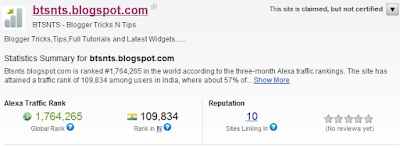
Alexa is the global leader in Analytics.It is also leading provider of free, global web metrics. Search Alexa to discover the most successful sites on the web by keyword, category, or country. Use our analytics for competitive analysis, benchmarking, market research, or business development. You can also use Alexa's Pro tools to optimize your blog's presence on the web.Alexa also helps to determine your blog improvement through it charts.I also add this blog to alexa and now page rank of btsnts is 17,64,265 and it is improving day to day.


How To Get Alexa Page Rank For Your Blog ?


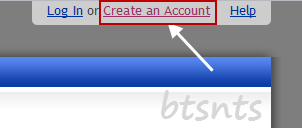
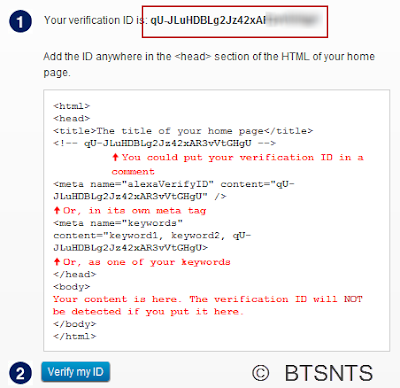
I am giving a full image tutorial so that you can easily understand it


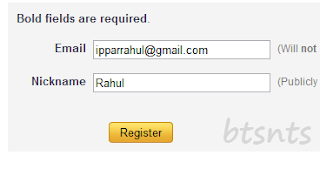
  • Fill  the short form.


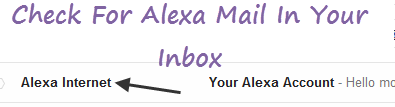
  • Now go to your inbox and search for confirmation message from alexa and click on provided link.

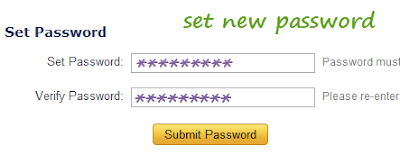
  • Now you will redirect to password page.Type the password for two times and hit submit password.


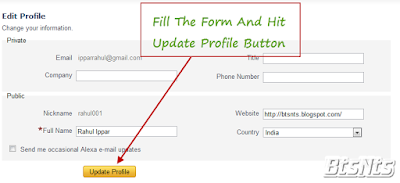
  • Now fill about your profile then hit update the profile.


  • Now go to your Dashboard at left site.


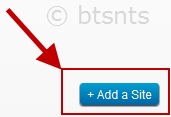
  • Click Add A Site Button at right bottom.


  • Now select your plan.I recommend Free Plan.


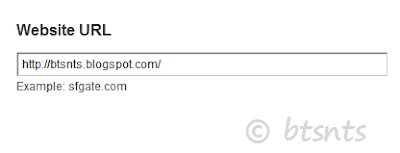
  • Now enter your blog/websites URL.


  • Then copy the full code carefully.


  • Now open a new tab.
  • Go to Blogger Dashboard >  Design > Edit HTML.
  • Now find <head> tag.
  • Put the copied code just below or after <head> tag.
  • Then again goes to alexa and hit Verify my ID button.
You done it.
You can also check your pagerank @

http://www.alexa.com/siteinfo/YOUR BLOG/SITE URL. 

*Not need to wright WWW. or HTTP://


Hi friends today i am going to share how to add jQuery and CSS3 menu bar for blogger, I’m shared more different menu bars, drop down, vertical drop down, with CSS3 and its more effective to your blog. I told that I’m using jQuery and CSS3 this is first time with using JQuery in menu bar and it is so nice. There are six effective colors to match your blog color


How To Add This Menu TO Blogger?

For easy understanding I am dividing the tutorial in three parts & they are as below,
  1. Adding Scripts
  2. Adding  Styles
  3. Adding The Menu

1. Adding Scripts

  1. Go to Blogger Dashboard > Template
  2. Click on Edit HTML
  3. Hit Proceed
  4. Find below code in your template

</head>

add below code just above it,(If you have already added a jQuery library to your blog then delete the highlighted code)

<script src="http://ajax.googleapis.com/ajax/libs/jquery/1.7.2/jquery.min.js" type="text/javascript"></script>
<script src="http://blogmasterpoint.blogspot.com/lavalamp-menu.js" type="text/javascript"></script>

2. Adding Styles


Now find below code,

]]></b:skin>


add below CSS code immediately before it,

/*LAVALAMP MENU BY http://blogmasterpoint.blogspot.com/ START*/

.lavalamp {
position: relative;
border: 1px solid #d6d6d6;
background: #fff;
padding: 15px;
-webkit-box-shadow: 0 3px 6px rgba(0,0,0,.25);
-moz-box-shadow: 0 3px 6px rgba(0,0,0,.25);
border-radius : 10px;
-moz-border-radius : 10px;
-webkit-border-radius : 10px;
background : -webkit-gradient(linear, left top, left bottom, from(rgb(240,240,240)), to(rgb(204,204,204)));
background : -moz-gradient(linear, left top, left bottom, from(rgb(240,240,240)), to(rgb(204,204,204)));
height: 18px;
font-family: calibri;
}

.magenta {
background : rgb(190,64,120);
background : -webkit-gradient(linear, left top, left bottom, from(rgb(190,64,120)), to(rgb(177,24,91)));
background : -moz-gradient(linear, left top, left bottom, from(rgb(190,64,120)), to(rgb(177,24,91)));
border: 1px solid #841144;

}

.cyan {
background : rgb(64,181,197);
background : -webkit-gradient(linear, left top, left bottom, from(rgb(64,181,197)), to(rgb(7,165,187)));
background : -moz-gradient(linear, left top, left bottom, from(rgb(64,181,197)), to(rgb(7,165,187)));
border: 1px solid #2f8893;

}

.yellow {
background : rgb(255,199,79);
background : -webkit-gradient(linear, left top, left bottom, from(rgb(255,199,79)), to(rgb(255,188,43)));
background : -moz-gradient(linear, left top, left bottom, from(rgb(255,199,79)), to(rgb(255,188,43)));
border: 1px solid #c08c1f;

}

.orange {
background : rgb(255,133,64);
background : -webkit-gradient(linear, left top, left bottom, from(rgb(255,133,64)), to(rgb(255,107,24)));
background : -moz-gradient(linear, left top, left bottom, from(rgb(255,133,64)), to(rgb(255,107,24)));
border: 1px solid #c04f11;

}

.dark {
background : rgb(89,89,89);
background : -webkit-gradient(linear, left top, left bottom, from(rgb(89,89,89)), to(rgb(54,54,54)));
background : -moz-gradient(linear, left top, left bottom, from(rgb(89,89,89)), to(rgb(54,54,54)));
border: 1px solid #272727;

}

.magenta li a , .cyan li a, .yellow li a , .orange li a, .dark li a{
color: #fff;
text-shadow: 0 -1px 0 rgba(0,0,0,.40);

}

.lavalamp a {
text-decoration: none;
color: #262626;
line-height: 20px;
}

.lavalamp ul {
margin: 0;
padding: 0;
z-index: 300;
position: absolute;
}

.lavalamp ul li {
list-style: none;
float:left;

text-align: center;
}

.lavalamp ul li a {
padding: 0 20px;
text-align: center;
}

.floatr {
position: absolute;
top: 10px;
z-index: 50;
width: 70px;
height: 30px;
border-radius : 8px;
-moz-border-radius : 8px;
-webkit-border-radius : 8px;
background : rgba(0,0,0,.20);
-webkit-transition: all .4s ease-in-out;
-moz-transition: all .4s ease-in-out;
}

/*LAVALAMP MENU BY http://blogmasterpoint.blogspot.com/ END*/


Now save your template.

3. Adding The Menu


Now come to Page Layout

  • Now come to Page Layout
  • Click on Add a Gadget (Below Header)
  • Choose HTML/JavaScript
  • Copy and paste below code inside it,

<div class="lavalamp dark">
<ul>
<li class="active"><a href="">Home</a></li>
<li><a href="#">About</a></li>
<li><a href="#">Blog</a></li>
<li><a href="#">Services</a></li>
<li><a href="#">Portfolio</a></li>
<li><a href="#">Contacts</a></li>
<li><a href="#">Back to Article</a></li>
<li><<a href="#">How it Works?</a></li>
</ul>
<div class="floatr"></div>
</div>

  • Replace # with the links
  • Replace Home,About,Blog. etc. with your link text which you want to appear on the menu.
  • If you want to change background color of the menu then replace <div class="lavalamp dark"> with one of the code below.


<div class="lavalamp">
<div class="lavalamp magenta">
<div class="lavalamp cyan">
<div class="lavalamp yellow">
<div class="lavalamp orange">
<div class="lavalamp dark">

Finally save your widget and you are done.
Q:-How to Enable Threaded Comments in Customized Blogger-Blogspot Templates ?

If you want to know How to Enable Threaded Comments in Customized Blogger-Blogspot Templates, just flow the method

Steps to Enable Threaded Comments in Blogger-Blogspot


  1. First of all make sure that your blog feed is set to Full. You can confirm that by going to Settings > Other and then selecting Full from the Allow Blog Feed dropdown.
  2. You must also have embedded comment form enabled. Check that by going to Settings > Posts and Comments and check the Comment Location dropdown.
  3. After that, open the Template section.
  4. Blogger Updated Dashboard
  5. Warning: Backup your current template before moving on.
  6. Click the Edit HTML button.
  7. Blogger Edit HTML Button
  8. A new window will open. You'd have to click the Proceed button to start editing.
  9. Blogger Proceed Button
  10. Check Expand Widget Templates option.
  11. Find the following line of code:
    <b:includable id='postQuickEdit' var='post'>
  12. Once you've found the above line, you'll see this piece of code:
    </div>
    </div>
    </div>
    </b:includable>
    <b:includable id='postQuickEdit' var='post'>
    Now, we need to add some code just BEFORE the above code. The code to add is:
    <b:if cond='data:blog.pageType == &quot;static_page&quot;'>
    <b:if cond='data:post.showThreadedComments'>
    <b:include data='post' name='threaded_comments'/>
    <b:else/>
    <b:include data='post' name='comments'/>
    </b:if>
    </b:if>
    <b:if cond='data:blog.pageType == &quot;item&quot;'>
    <b:if cond='data:post.showThreadedComments'>
    <b:include data='post' name='threaded_comments'/>
    <b:else/>
    <b:include data='post' name='comments'/>
    </b:if>
    </b:if>
    After adding the new code, overall code should look like this:
    <b:if cond='data:blog.pageType == &quot;static_page&quot;'>
    <b:if cond='data:post.showThreadedComments'>
    <b:include data='post' name='threaded_comments'/>
    <b:else/>
    <b:include data='post' name='comments'/>
    </b:if>
    </b:if>
    <b:if cond='data:blog.pageType == &quot;item&quot;'>
    <b:if cond='data:post.showThreadedComments'>
    <b:include data='post' name='threaded_comments'/>
    <b:else/>
    <b:include data='post' name='comments'/>
    </b:if>
    </b:if>
    </div>
    </div>
    </div>
    </b:includable>
    <b:includable id='postQuickEdit' var='post'>
  13. Now, we need to find the following piece of code:
    <div class='post-outer'>
    <b:include data='post' name='post'/>
    <b:if cond='data:blog.pageType == &quot;static_page&quot;'>
    <b:include data='post' name='comments'/>
    </b:if>
    <b:if cond='data:blog.pageType == &quot;item&quot;'>
    <b:include data='post' name='comments'/>
    </b:if>
    </div>
    and REPLACE the above code with the following one:
    <div class='post-outer'>
    <b:include data='post' name='post'/>
    <b:if cond='data:blog.pageType == &quot;static_page&quot;'>
    <b:if cond='data:post.showThreadedComments'>
    <b:include data='post' name='threaded_comments'/>
    <b:else/>
    <b:include data='post' name='comments'/>
    </b:if>
    </b:if>
    <b:if cond='data:blog.pageType == &quot;item&quot;'>
    <b:if cond='data:post.showThreadedComments'>
    <b:include data='post' name='threaded_comments'/>
    <b:else/>
    <b:include data='post' name='comments'/>
    </b:if>
    </b:if>
    </div>

  14. Click Save template and then Close button.


  15. Blogger-Blogspot Save Template Close Buttons
  16. Check your blog. If you can see the option of Reply under each comment then threaded commenting is enabled. Otherwise, upload your backup template.
Q:-How to Check my Blogger Template Name?

if you want to know what is your blogger template name follow the method


Ever wondered which template you are using? Well, it is pretty simple to know. In this tutorial, I'll tell you how to check the Blogger template of your blog. By default, Blogger offers 6 awesome templates including Simple, Awesome Inc., Picture Window, Ethereal, Watermark & Travel. Follow the steps to check your template.

  1. Open the Template section.
  2. Blogger Updated Dashboard
  3. Click the Edit HTML button.
  4. Blogger Edit HTML Button
  5. A new window will open. Click the Proceed button.
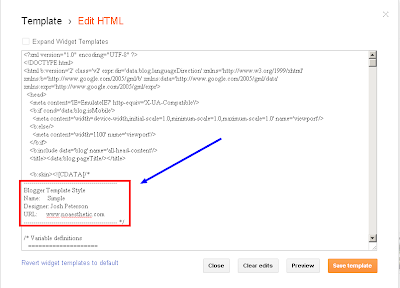
  6. Now, you'll see a lot of code. Just scroll down a bit and you'll see some code like this:
  7. -----------------------------------------------
    Blogger Template Style
    Name: Simple
    Designer: Josh Peterson
    URL: www.com
    -----------------------------------------------
  8. From this code, you can easily see the name of the template. In the example, the template is "Simple". After that you can easily do editing or follow some tutorial. Click the following image for details:
Q:- how to setup my own custom .com domain for blogger?

Hi, today i am going to share a post where you can get a answer for how to setup my own custom .com domain for blogger?

Fist you should buy a new .com domain which you wanted to pointed to your blogger blog.

Second Go to blogger.com. login into blogger and, create a new blogger website

Blogmasterpoint
 Third Go to setting


Fourth  Select a custom domain which will redirect to your blogger site
Fifth Swith to advanced mood setting
 Sixth input your domain name. then click the save
Seventh On your domain registrar's website, locate your Domain Name System (DNS) settings and enter the following two CNAMEs:


Name, Label, or Host field Destination, Target, or Points To field
www               ghs.google.com
zcozxtc66tw6                     gv-3whv6cgk7ixiyi4tbjjqsbcjonqes3hvbflvevndwzvlwjaqe34q.domainverify.googlehosted.com


 5.Now again add another DNS record with the following values A, (leave next field blank),216.239.32.21 and 1800 and click submit
Create 3 More A records with following set of values
A , (leave the second field blank),   216.239.34.21 ,1800
A , (leave the second field blank),   216.239.36.21 ,1800
A,  (leave the second field blank) ,  216.239.38.21 ,1800
Now you are done................

Need help? pleas comment........